
Initial Filter
To accelerate its initiation, Visualizer (as an iSecurity component, see more details in Chapter 4 Introduction to the iSecurity Authority InspectorChapter 4 Introduction to the iSecurity Authority Inspector) launches with a number of default filter definitions.
The first screen presented shows initial data in the Graphical Results Presentation Pane, the Tabular Results Presentation Pane and the Filter Definition Pane and Selection Tabs.
The defaults are three (3) identical pre-defined filters; each refers to the Date field and includes only ten (10) occurrences.
This way, the data set for analysis is very limited and the results are presented promptly upon initiation.
These defaults can be altered by:
-
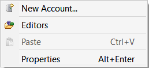
Right-click the mouse on the application name (Audit in this example) in the Navigator Pane (left side of the screen) to open the roll-down menu:
-
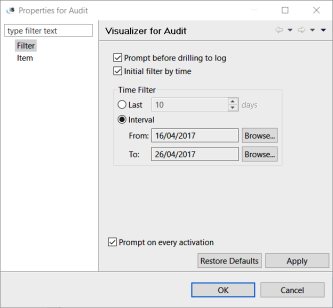
Select the Properties menu item (with mouse left-button click or, alternatively, by pressing the Ctrl and Enter keys of the keyboard simultaneously) to bring up the Properties for Audit Dialog Box presented below:
-
Click the mouse on the Filter menu line in the left side of the Properties for Audit Dialog Box.
The Properties for Audit Dialog Box allows setting of default values of the Initial Filter by:
-
Selecting the option for Prompt before drilling to log,
-
Selecting and limiting default filter by time, either for a set number of last days (before activation) or by setting a specific time-frame,
-
Selecting if this default setting dialog box will automatically prompt upon activation.
Once the default options have been set, there is a need to save them by clicking with the mouse on the Apply Button or switching them back to the factory defaults by clicking on the Restore Defaults Button.